Updated 24 Jul 2026 · exit-lag.net
Help center
Guides
ExitLag guides and troubleshooting
Six walkthroughs for install, ping that barely moves, antivirus prompts, Multi-Internet failover, Traffic Shaper, and day-to-day habits. Based on common player reports and product help topics.
From download to your first optimized match in about fifteen minutes.
1
Download the matching installer
Get SetupExitLag-5.21.3-x64.exe from the download page . Use legacy V4.305.1 only on older Windows 7-class PCs.
2
Run setup and finish the wizard
Approve driver and firewall prompts when Windows asks. Restart if the installer requires it.
3
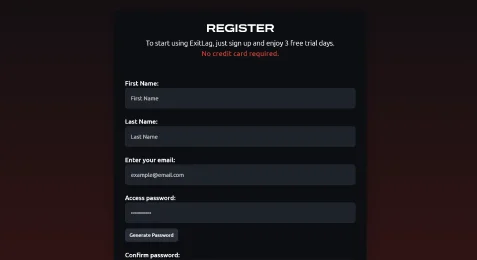
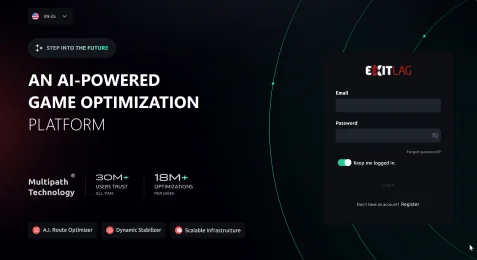
Sign in or create an account
Use email or Google login on recent V5 builds. Start the trial only if you accept that paid plans may auto-renew afterward.
4
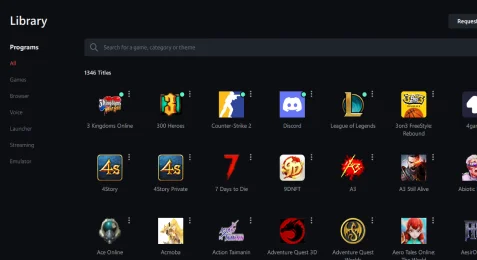
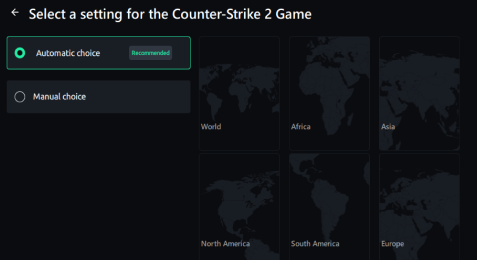
Add your game and Apply Routes
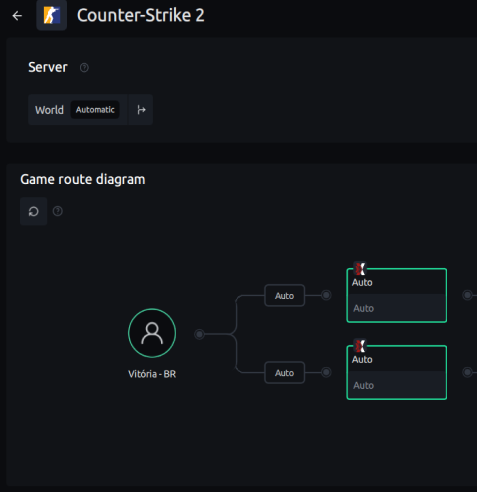
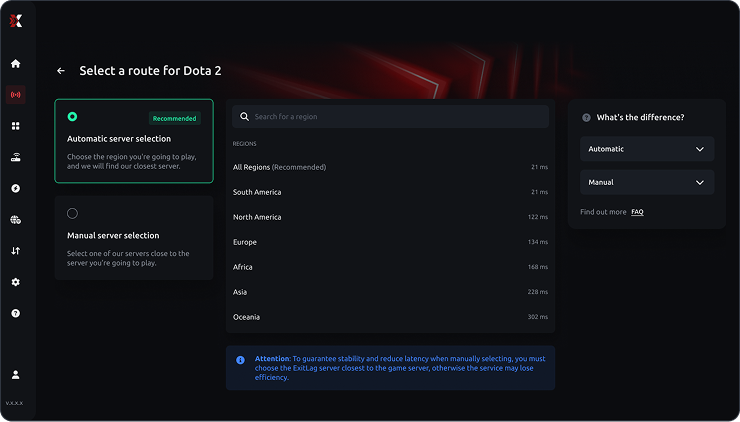
Pick Automatic (Recommended) or a Manual region, then launch the game while ExitLag stays open in the background.
5
Optional: configure Traffic Shaper
Run the first-use speed test so Optimized games keep bandwidth when Steam or browsers download in the background.
Tip: Keep ExitLag running for the entire session. Closing the client returns traffic to your normal ISP path.
Small gains are normal when your ISP path was already clean or Wi-Fi congestion dominates. Work through this list in order.
1
Confirm ExitLag is still open and the game executable shows routes applied. Closing the client stops optimization immediately.
2
Switch Automatic vs Manual for the region you actually queue into (for example SEA vs NA). A mismatched region can raise ping.
3
Move to Ethernet and pause large downloads. ExitLag cannot fix weak Wi-Fi or interference.
4
Enable Traffic Shaper if background apps spike during matches. See the guide below.
5
Accept modest deltas when your baseline route is already strong. Focus on packet loss and disconnects, not a guaranteed 50 ms drop.
Tip: Compare Manual region latency values in the client before you queue. The screenshot below shows millisecond readings per route.
Network filters resemble malware patterns to some engines. Use a careful allowlist path instead of turning protection off permanently.
1
Verify filename, size (~92.13 MB for 5.21.3), and SHA256 on the download integrity section .
2
In Windows Security, open Protection history, restore the ExitLag installer if quarantined, then rerun setup.
3
If needed, add a temporary exclusion for the installer path only during install, then remove it afterward.
4
Allow ExitLag through the firewall when prompted. Blocking the filter stops routing entirely.
Tip: Never ignore alerts for random unnamed EXE files from chat links. More context on
Trust and security .
Combine up to four links so a single ISP drop does not kill your session.
1
Connect every link you plan to use (Ethernet, Wi-Fi, tether) before opening Multi-Internet settings.
2
Enable up to four connections. ExitLag can keep the session alive if one ISP drops.
3
Test by briefly disabling one adapter from a menu screen (not mid-ranked if disconnects risk penalties). Confirm the game stays connected.
Tip: Multi-Internet shines for streamers and shared households with a backup LTE or second ISP line.
Reserve bandwidth for optimized games when Steam, browsers, or cloud sync compete on the same line.
1
Open Traffic Shaper and complete the speed test so limits match your real Mbps.
2
Keep optimized games in Optimized. Move browsers and cloud sync to Secondary or Custom with upload/download caps.
3
Use Smart Mode if you only want caps during instability. Turn Smart Mode off when you need hard limits every session.
4
Block only processes you recognize. Blocking the wrong service can break voice chat or launchers.
Small habits that keep routing stable and billing predictable.
Prefer wired Ethernet for competitive queues and tournament play.
Pause OS and Steam updates before ranked matches; let Traffic Shaper handle leftover background traffic.
Disable auto-renew early if you only wanted the trial. Card and PayPal renewals are often non-refundable once charged.
Console play needs a PC share or compatible router path. ExitLag is not a native PS5/Xbox app.